 View your Calendar
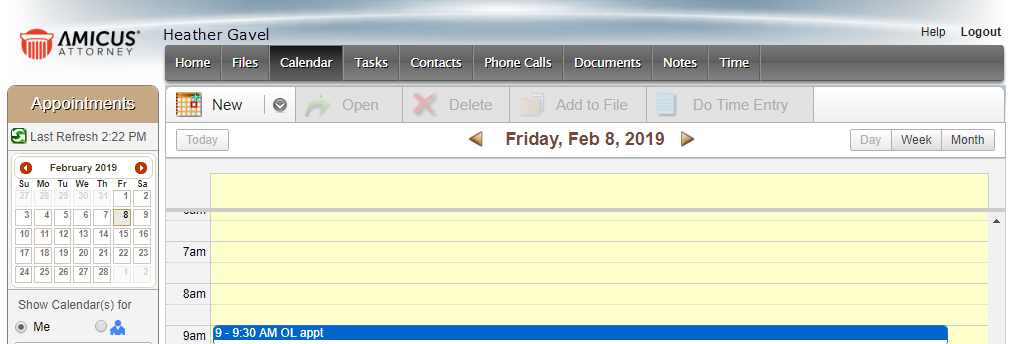
View your Calendar● Amicus Anywhere provides you with three different options to view the calendar. These options all display in the ribbon when you select Calendar from the main menu.
o Today –
Your Appointments for Today are shown by default.
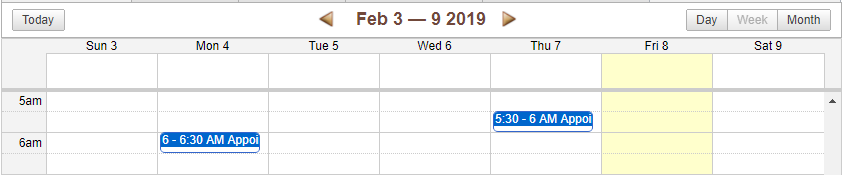
o Week –
Organizes your calendar by units of a week.
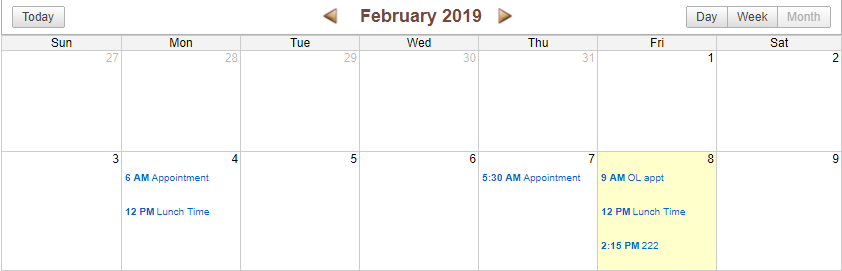
o Month –
Allows you to see your month at-a-glance.
o Click
the  Previous or Next
  arrows
in the Day, Week or
Month view to go back and forth within the view.
arrows
in the Day, Week or
Month view to go back and forth within the view.
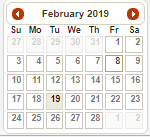
● Mini calendar: Click a date on the mini calendar
in the filter pane to display that date in any one of the views.
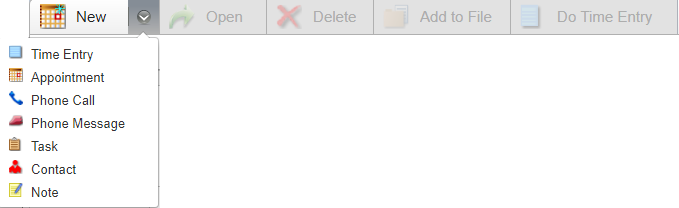
● From the Taskbar you can select New and select an option from the pull-down menu that displays to create a Time Entry, Appointment, Phone Call, Phone Message, Task, Contact or Note.
● You can also select a task/appointment on the calendar and click Open to view or Delete to remove it from the calendar.
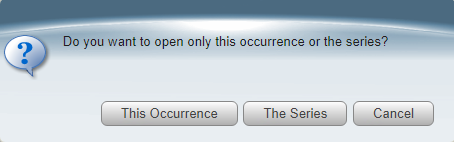
o A Prompt message displays if there is a series
● You can also click Show File to open the associated file or add a task/appointment to a file by selecting Add to File.
● Click Do Time Entry to open the Time Entry dialog and create a time entry for the task/appointment.
Amicus Anywhere Help (March 2019)
